Comments and notifications are available in the Standard and Essential platforms and across all legacy plans (Essential, Pro, Standard, Ultimate, Core, Growth, Performance, Enterprise). Learn more about our Plans & Pricing.
Instead of using emails and different communication platforms for team collaboration and then struggling to find that specific piece of information you need, use comments in Scoro to bring all the necessary information together. You can leave comments and tag your team members to share valuable information about a specific project, task, document, etc.
In this article, you'll learn how to enable notification settings on your site, leave comments, how users are notified, what automatic notifications are in place, and how to check notifications in Scoro.
Learn how to create your own custom notification rules on our Triggers and actions article.
Jump to...
1. Enabling notification settings
Note! To be able to notify others and receive notifications in Scoro, the user must have the notifications permission. Go to Settings > Administration > Permission sets, click on Modules and actions on the relevant permission set line to open the permissions page, and tick the Notifications permission.
2. Managing comments and notifications
2.1. Leaving comments and notifying users
Comments can be used all over Scoro. To share your thoughts on a specific task, for example, open the task detailed view and comment.
Click the Notify button to notify all the users related to this task, or manually select the users you want to notify. By default, all selected users will be notified in Scoro; you can tick By email checkbox to notify them via e-mail as well.
If you want to be notified about any new comments added to a specific task, you can set up a custom notification using Triggers and actions.
Note! The 'By e-mail' checkbox can be set to be ticked by default. The site administrator can do this by going to Settings > Site settings > Comments and enabling the Notify tagged users of new comments by email setting.
Another way to automatically notify someone in Scoro is by tagging the user in the comments – enter the @ symbol, start typing the name of the team member you want to notify, and select them from the list that appears. Add as many users as you wish to notify in your comment.
Note! Copy-pasting the @ symbol and the person’s name won’t notify them – always type out the @ symbol and their name to trigger the notification.
When creating a new calendar event, click the Notify button to notify all event participants in Scoro and via e-mail.
2.2. Customer Portal comments and notifications
If you have set up a Customer Portal, you can notify your Customer Portal users and tag them under the projects, tasks, or other modules they have access to. To do so, enable the Show in Customer Portal toggle when writing the comment. Disable this toggle if you wish to share the comment only with the project members and not the Customer Portal users.
Just like tagging your colleagues, you can also tag your customer portal users using the @-sign. Once a portal user is tagged, the Show in Customer Portal toggle is enabled by default and can be disabled only when the portal user tag is removed from the comment.
Customer Portal users are notified in Scoro, but you can also tick the By e-mail checkbox to notify them via e-mail.
Note! Customer Portal users can view and leave comments only if they have permission to do this action. For more information, see our Customer Portal article for site administrators.
2.3. Modifying or deleting comments
Modifying and deleting other users' comments requires specific rights. Site administrators can grant these rights for specific permission sets under Settings > Administration > Permission sets.

With the above rights enabled, hover over the comment and click Modify or Delete.
2.4. Sorting comments
Click the arrow in the Comments section to sort your comments from the oldest to the newest or vice versa. Scoro will always remember your latest preference across all views.
2.5. Reacting to comments with emojis
You can quickly react to a comment with an emoji, notifying the user who left it:
- Scroll down to the Comments section and locate the comment you want to react to.
- Click the Add a reaction button (a smiley face icon), use the search bar or emoji categories to locate the perfect emoji, and click on it to leave a reaction. Repeat this step to add as many emojis as you'd like!
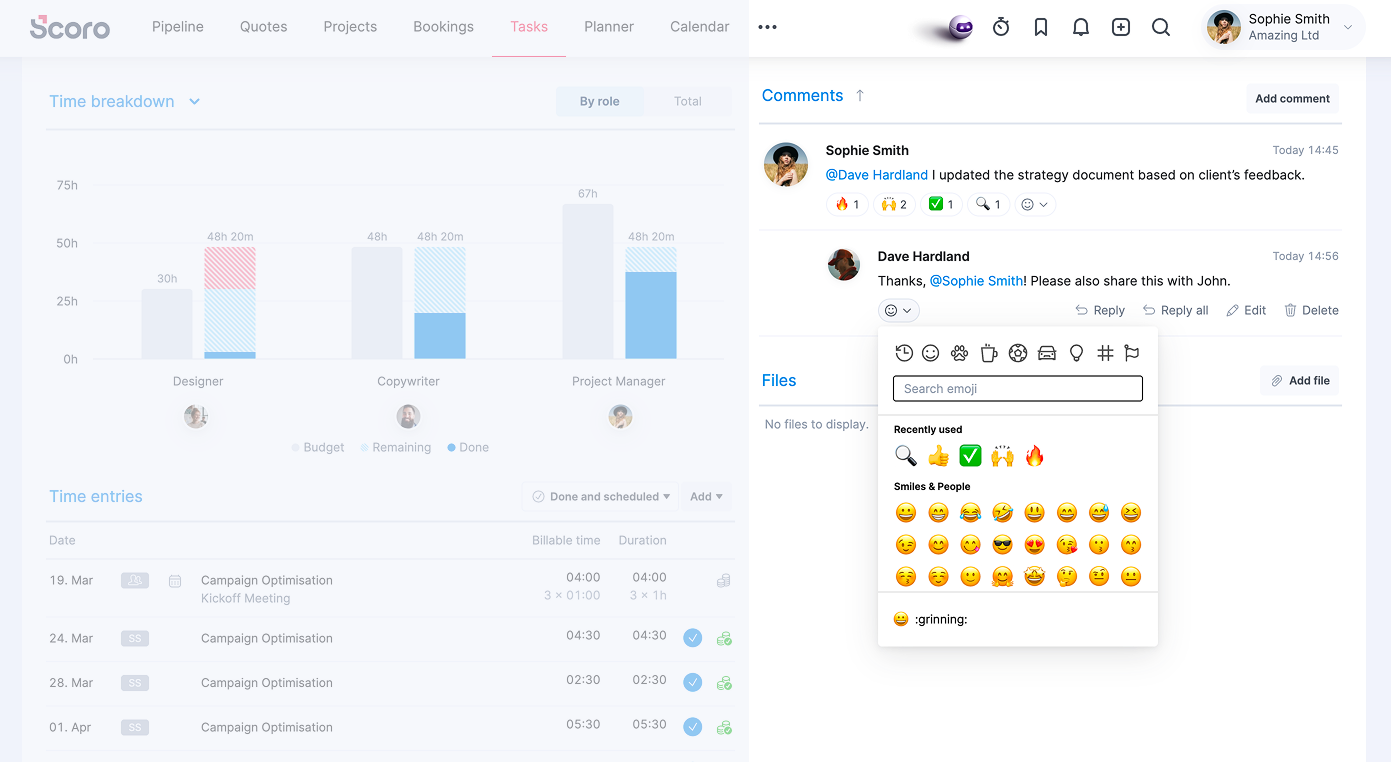
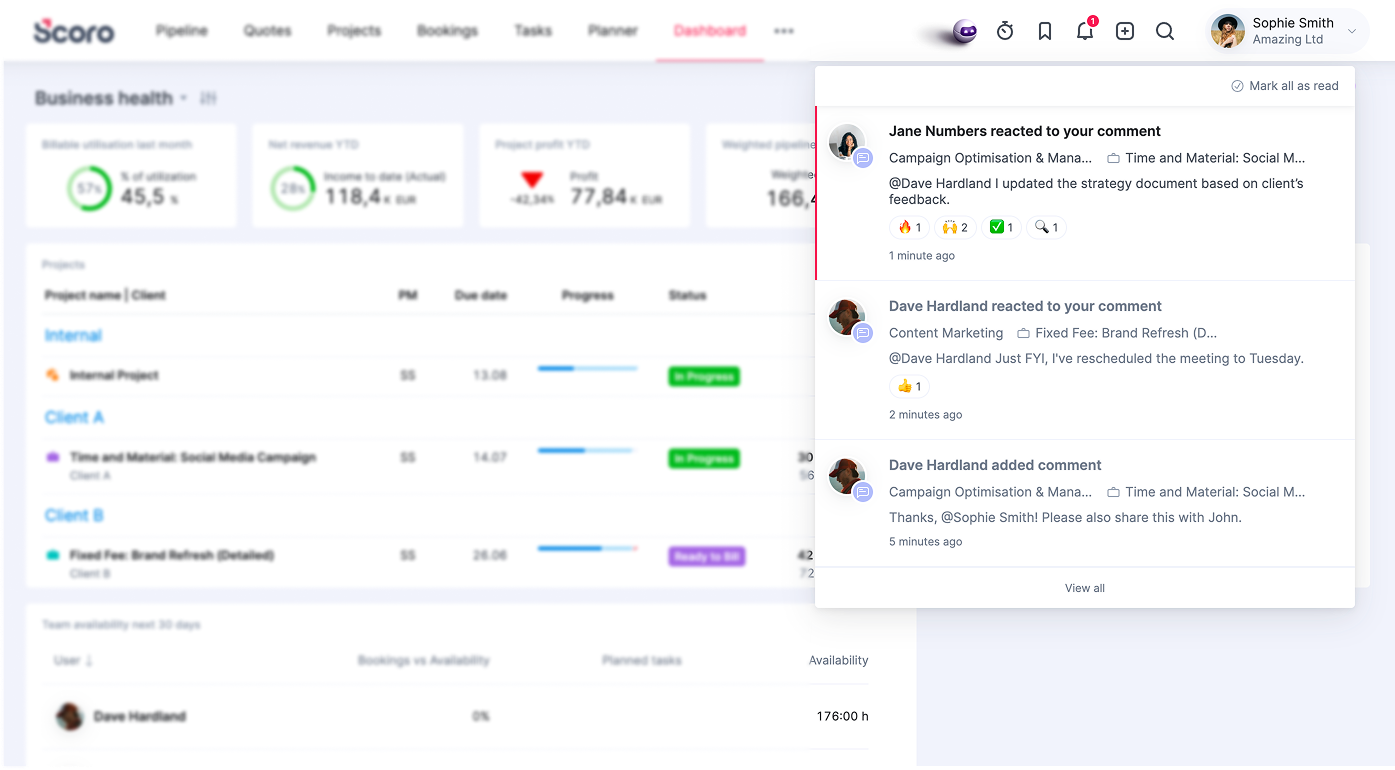
To keep the Scoro workspace clean and prevent notification overload, all reactions to the same comment are grouped under a single notification, and you can hover over the emoji to see who reacted with it.
3. Automatic notifications
In addition to manually notifying someone of something in Scoro, the system automatically notifies users of various actions. Some of these default system notifications are available in the Other rules section under Settings > My Settings > Triggers and actions and can be:
- modified and deleted only by site administrators
- muted by any user
Users are automatically notified in Scoro when:
- a task or event is added/modified
- a task is marked as done
- a calendar event is deleted
- bulk action jobs are completed (for example, marking multiple tasks as done from the list view)
- data is imported, or the imported data is deleted
- an active time entry is assigned to a user
- an active time entry is assigned to a user
- a background job completed/failed (in case of making changes to a large number of items, for example)
- a comment is added/edited/deleted
- a calendar invite is accepted/declined
- a rental order assignee is changed
Users are automatically notified via e-mail when:
- a calendar invite is accepted/declined
- site quota is exceeded
- bookmark Watchdog conditions are met
- conditions set in Triggers and actions are met
- a password is reset
- a new user is invited
- 2-step verification is turned on/off
- a task is marked as done
- a task is deleted
- a task is converted into a calendar event
- a calendar event is deleted
- credit card payment failed/succeeded
- changes are made in self-service
- integrations are disconnected
- a reminder is set in the Calendar
- the site version has been updated
- a task created by the user is modified by the task assignee
Users can also set up personal notifications under Settings > My Settings > Triggers and actions. For more information, see our Triggers and actions article.
4. Frequently asked questions
Does Scoro keep the notification history?
To boost system performance and make Scoro faster for everyone, all Scoro notifications older than 2 years are automatically removed. This only affects the old notification message itself; the item the notification was about will remain on your site.